Do you want to improve your website’s SEO as quickly as possible?
If you have a WordPress website, this checklist is for you. Our expert team has come together to identify the fastest ways to improve your website’s SEO, starting today! It’s not easy to choose the best SEO methods from the hundreds of changes you could make, but we’ve done it.
Use this checklist to improve your website’s SEO and boost your search rankings and website traffic.
SEO (search engine optimisation) is a long-term project, but you can start now. Over time, you can keep working on your website and keep increasing your SEO.
1. Choose the keywords you want to rank for
The keywords you want to rank for should be the search terms users type into a search engine to find your organisation.
Use phrases instead of single words.
The term ‘keyword’ can be misleading to anyone new to SEO. We use phrases rather than single words because they are more specific. They usually have lower search volume (i.e, fewer searches each month). However, they also have less competition and are more targeted, which means they have a higher conversion rate. This means that if people click these more specific phrases, they are ultimately more likely to convert into a customer or lead on your website.
Avoid keywords that are too general.
Try to avoid single words or overly general terms like ‘cars’. Choose something more like ‘used cars for sale Surrey UK’. The phrase is much more specific and is more likely to drive traffic and improve conversions.
This phrase would also better match a searcher’s SEARCH INTENT. If your page ranks in the search results and a user clicks your link, the page that more closely matches search intent converts far better.
Leverage local SEO by targeting geographical keywords
If you offer services in Surrey, UK, include the location name in your target keyword, such as ‘cars for sale in Surrey, UK ‘. You can replicate this for multiple areas that you service.
Keyword research
If you’re stuck for ideas, or you want to check the search volume and search difficulty of keywords you like, use Ubersuggest.
Create a single Ubersuggest account and add your website and location. Then look at the menu on the left side of the page. Navigate to ‘Keyword Research’ – ‘Keyword Overview’.
Start to test some phrases by typing them in the box labelled ‘Get a detailed keyword overview’:
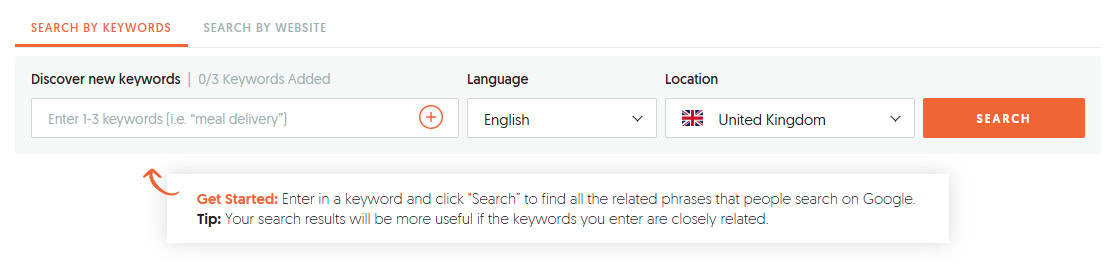
Choose keywords that have a lower search volume (eg, lower than 500), but also a lower SEO difficulty (lower than 50) to start. You are most likely to rank for keywords with metrics like these in the beginning.
Scroll down the page to ‘Keyword Ideas’. Check if any keywords fit the content you already have. This section will also give you ideas for keywords for which you could write new content.
Start with about 10 target ‘keywords’ on your list. These are the keywords you’ll optimise your website for. (You will add to this list as you go, but start small and grow.)
Match your target keywords to your website’s pages
Write out your website menu, so you have a list of your website’s pages. You won’t want to rank some pages (like your Privacy Policy), so you can ignore them. Next to each page that you want to rank on search engines (like Google), assign one of your keywords.
Do you have keywords left over?
If you have extra target keywords and not enough pages on your website, create new pages. Write new content for the keywords you have.
PRO TIP: Don’t rank more than one page for the same keyword.
2. Evaluate the quality of your page content
Once you have assigned your target keywords to your website pages, carefully evaluate the quality of the content on each page. Your content should follow Google’s E-E-A-T guidelines.
Google uses E-E-A-T to score content on websites. These factors are used to determine the quality of content and to ensure that websites provide accurate, reliable, and trustworthy content:
- Expertise
- Experience
- Authoritativeness
- Trustworthiness
Your content on each of these pages must:
- Be original and helpful
- Not be copied (either from your website or from anywhere else on the internet)
- Include relevant and high-quality images and videos to enhance your users’ experience.
- Include personal touches (i.e. add your own experience and insights)
- Be authoritative and trustworthy
Rewrite your content if necessary
If your content doesn’t follow these guidelines, then rewrite it until it does.
It can be a daunting task, but search engines (especially Google!) rank content that users value and enjoy! It’s your job to make sure that the content on these pages you’ve identified follows the above guidelines.
3. Check your on-page SEO
On-page SEO is the practice of optimising the content on an individual website page so that it can be found more easily by search engines. If set up correctly, it also makes your page more likely to be clicked by users when they see it in the search results.
Yoast is a brilliant and extremely popular SEO plugin for WordPress. It performs several background processes to help your search engine optimisation.

Set up Yoast on your WordPress website.
Log in to your WordPress backend and install and set up Yoast. Click here to find the Yoast plugin online, or go to ‘Plugins’ – ‘Add New Plugin’, and search for ‘Yoast ‘. Once it is installed, follow Yoast’s simple setup process.
We’ll focus on Yoast’s powerful on-page tools. Yoast provides an on-page SEO checklist to help you improve your on-page SEO much more easily.
If you start using Yoast to optimise your on-page SEO, you will soon learn about ‘the green dots’. Yoast uses a traffic-light system in its on-page SEO checklist. The plugin shows you where your on-page SEO is lacking (red dot), where you can improve your website’s SEO (yellow dot), and where it’s already great (green dot).
Yoast acts as a clever guide when you are working on your on-page SEO. You should aim for green dots where possible, but your page must still appear as natural as possible.
PRO TIP: Remember, you must optimise for HUMANS first, before you optimise for Yoast, Google, or other search engines. This is always the best SEO approach. If you chase the green dots, but your page starts to sound unnatural, your optimisation has gone wrong.
Also, remember that Yoast is a checklist for on-page SEO. Green dots don’t guarantee that your content will automatically rank in search results. They show you where you have done well and where you need to increase your website optimisation.
Optimise your on-page SEO per page.
Open the page you want to optimise for on-page SEO. Scroll down to the Yoast section (usually near the end of the page) and familiarise yourself with Yoast’s options. (We have used our SEO Definitions page as an example of how to use Yoast.)
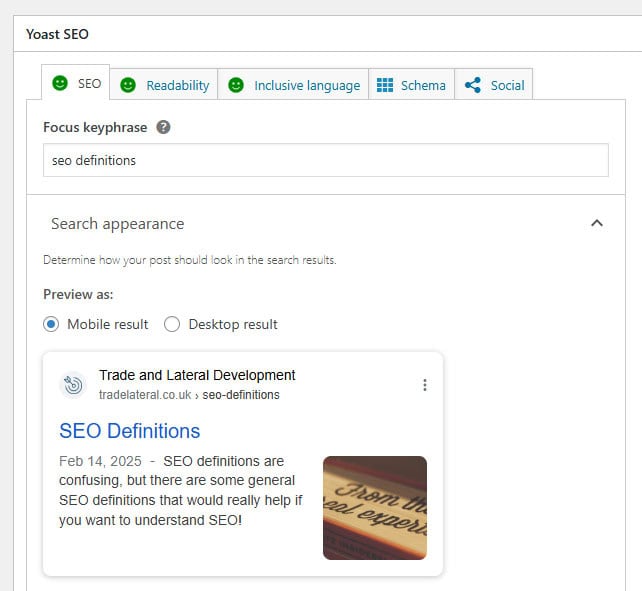
Make sure you fill in the following:
- Focus keyphrase (This is the target keyword you are optimising this page for.)
- SEO title (This is the page title your searcher will see. Choose your own and make sure it entices users to click.)
- Meta description (This is the description of your page that will appear in the search results.)
Click the ‘SEO analysis’ dropdown to see all the on-page elements you can add or correct.
You’ll see the different-coloured dots here – aim for green but don’t over-optimise. Orange is great too. Remember that you are optimising for an excellent user experience, i.e. for HUMANS! Make sure you don’t sacrifice your user experience to get an extra green dot.

When you’re finished, click the ‘Readability’ tab (pictured below) in the Yoast section. Follow the same principle by correcting your text until you get an orange or green score:

Lastly, check the ‘Inclusive Language’ tab too (pictured below) to make sure you’re not making mistakes here:

Once you’re finished, make sure you update and save your page!
4. Test your website speed
Site speed is one of the most important ranking factors on search engines. If your website is slow, neither Google nor users will wait for it to load. You probably won’t show up in searches. Even if you do, users will click off your site if it doesn’t load in less than 3 seconds.
Test your website speed using online speed testing tools
Check your website speed using GTMetrix. Make sure you choose a testing server close to where your target market is searching:
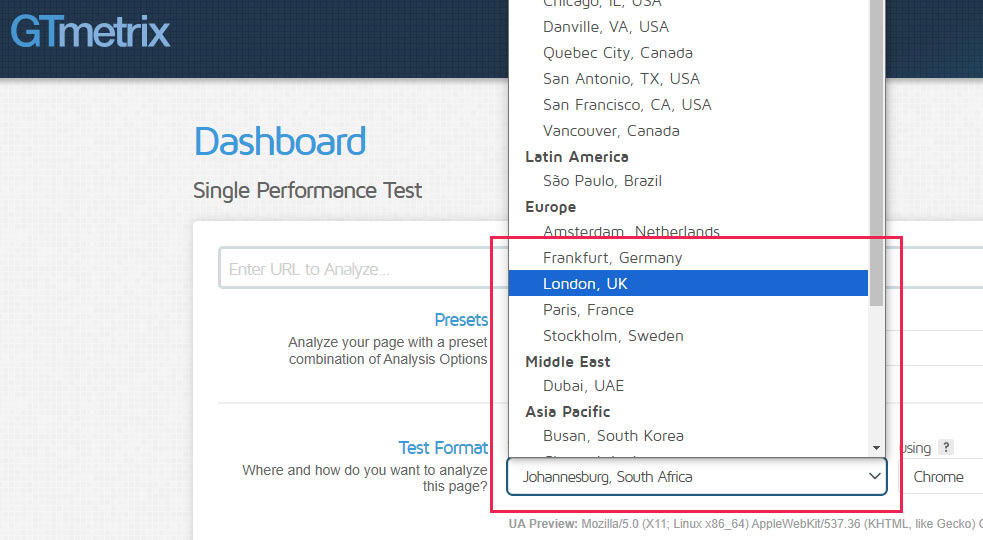
Run at least 3 tests to get a more accurate picture of your site speed. Once complete, review the results to see if anything jumps out at you. (You might need a professional website designer to help you fix any technical issues.)
Here are some of the most common reasons websites are slow:
- Images are far too big
- Software is outdated (WordPress core, themes, or plugins)
- Too many fonts (limit yourself to one or two at most)
- No caching system
- Software conflicts (some plugins don’t work well with others)
Here are the solutions to these major issues:
- Images – optimise images with EWWW Image Optimiser.
- Update all your website software (please back up first!).
- Only use one or two fonts on your website (make sure any others are removed).
- Install WP Super Cache and set it up on your website. (This plugin is free and great for beginners.)
Software conflicts are more difficult to diagnose, and you’ll probably need to ask a web designer. You can contact our expert team if you need help.
5. Connect your website to Google Search Console
Google Search Console is a free tool from Google that helps you manage and improve your website’s performance in Google search rankings.
It can handle many technical tasks, but to keep this list simple, we’ll connect to your site and run through a few quick checks.
Set up Google Search Console
If you haven’t already got Google Search Console set up, please go here to set up your Console account. The only requirement is that you already have a Gmail Account Set up. (If you’re already using Google Analytics, use the same account that you used to set that up.)
Open Search Console, add your website, and verify ownership of your site
You’ll need to prove that you are the owner of your website. This is because Search Console shows information about your site that only site owners should see. It also allows you to make changes that can affect how your site appears on Google.
Perform some basic SEO functions to boost your website
Check if Google has penalised your website
Go to ‘Security & Manual Actions’, click ‘Manual actions’ – make sure there are no warnings.
Submit your sitemap
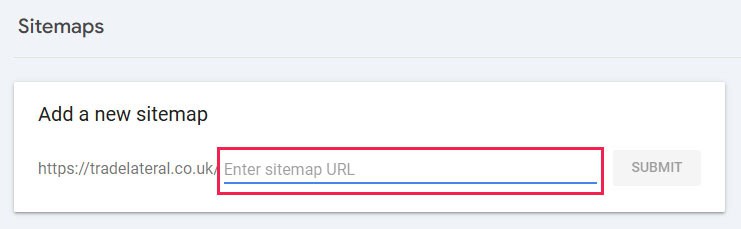
Go to ‘Indexing’ – ‘Sitemaps’ to submit your sitemap. In the box provided, type sitemap_index.xml and click ‘Submit’:
Check if your pages are indexed.
Go to’‘Indexing’ – ‘Pages’ and check how many pages are indexed, versus how many aren’t. If you have 20 pages on your website that you want to appear in search results, you want 20 pages indexed. If they aren’t indexed, it might be due to errors or because Google just hasn’t crawled your site yet.
Many technical reasons could explain why your pages haven’t been crawled or indexed. Some reasons are valid, and you can ignore the ‘errors.’ Some reasons are issues you should fix to improve your website’s SEO.
Request page indexing
For this simple checklist, you will request that Google index the new pages you have been working on.
At the top of the screen, copy your page URL into the ‘Inspect any URL’ box and push Enter:

PRO TIP: Google will limit the number of requests you can make each day. If you have many new pages to index, you may need to request them over several days.
Remember, Google can only display crawled and indexed pages in search results.
We hope you’ve found this simple checklist to increase website SEO useful.
Our expert team has compiled a straightforward list of steps to improve your website’s SEO that you can work on TODAY. However, you can execute each of these steps in more detail.
SEO, or search engine optimisation, is a huge, complicated topic. Google uses hundreds of ranking factors to determine whether a website can appear in search results.
Please don’t be put off by the magnitude of SEO. You must start somewhere.
This list is an excellent, high-level view of SEO that you can start working on now. As you go, you will find more and more elements you can tweak, change, or fix.
And if you get stuck or confused, we are always here to help. Please reach out if you have any questions about how to improve your SEO.